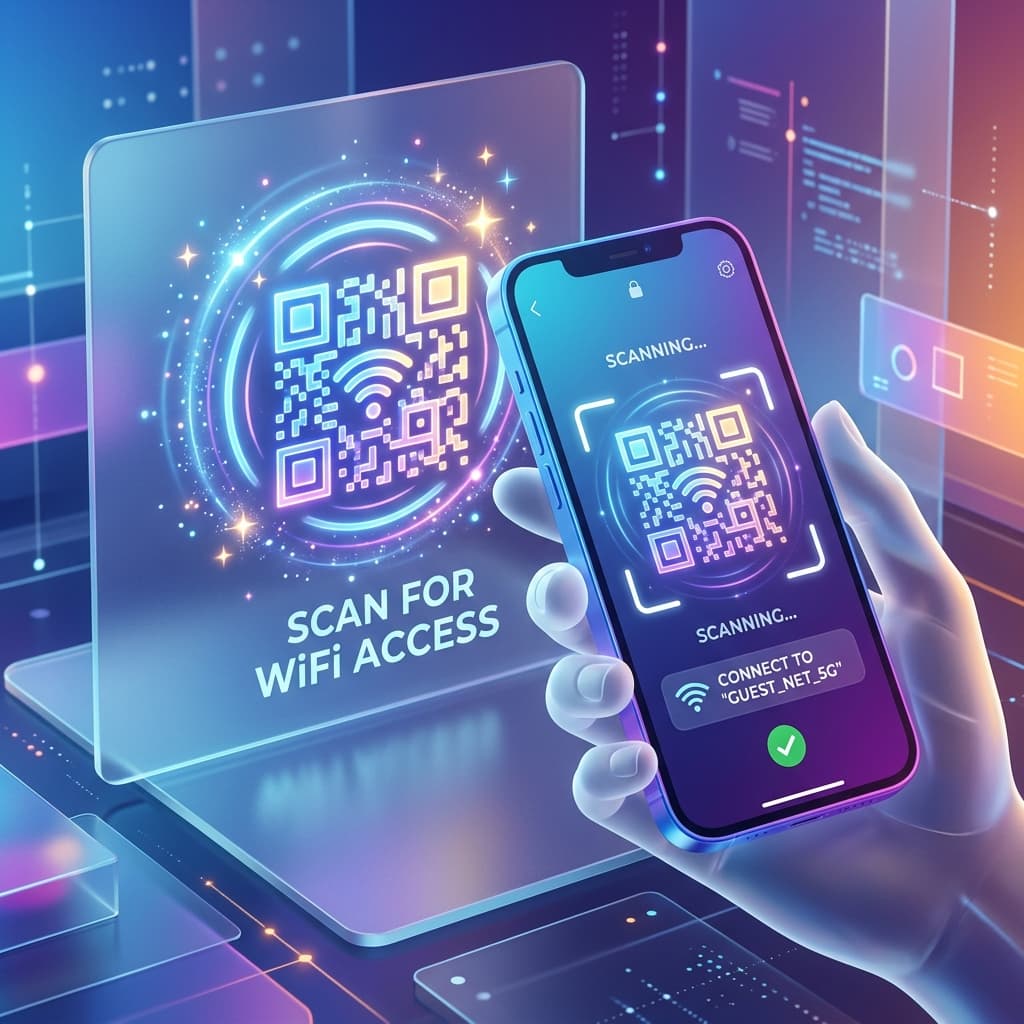
Free WiFi QR Code Generator — No Password Required

Let guests connect to your Wi-Fi instantly by scanning a QR. No typing, no frustration.

Free WiFi QR Code Generator — No Password Needed | QRcodeGenerate

Design your QR Code

Preview will appear here

No registration required.
Free forever for personal and commercial use.

If you run a café, hotel, restaurant, office, or Airbnb, you know the most common guest question: "What's the WiFi password?" With a WiFi QR code, that question disappears forever. Guests simply scan the code with their iPhone or Android and they are connected — automatically, instantly, and without error.

What Is a WiFi QR Code?

A WiFi QR code is a special type of QR code that stores your network credentials in an encrypted format. When an iOS or Android user scans it with their camera app, their device reads the SSID (network name), password, and encryption type and offers to connect automatically. This works with WPA2, WPA3, and older WEP networks. The main benefit is zero friction — your guest does not need to read a long password from a sign, mistype it, or ask again. Modern smartphones running iOS 11+ and Android 9+ support WiFi QR scanning natively with no app required.

How to Create Your WiFi QR Code in 3 Steps

1. Select the "WiFi" mode in the generator above. 2. Enter your SSID (this is the name of your WiFi network exactly as it appears on devices). Enter your WiFi password in the Password field. Select the encryption type — most modern routers use WPA/WPA2. 3. Your QR code generates instantly in the preview panel on the right. Click "Download PNG" to save a high-resolution 1000×1000px image file, perfect for printing.

Best Practices for Placing WiFi QR Codes

For cafés and restaurants, place your WiFi QR code on your table cards, menus, or near the counter. For hotels or Airbnbs, display it on your welcome card or a desk stand in the room. For offices, put it at the reception desk or meeting room tables so visitors connect immediately. For retail stores, post it near the checkout or entrance. Adding a short label like "📶 Scan to Connect to Free WiFi" significantly increases scan rates. Print at minimum 3×3cm for reliable scanning, and always test with multiple devices before placing it in production.

Is a WiFi QR Code Secure?

Yes. The WiFi QR code stores your credentials but requires physical proximity to scan — unlike sharing your password verbally or on a sticky note. The QR code does not expose your credentials to any server; generation happens entirely in your browser with our tool. For extra security, create a separate "Guest" WiFi network on your router and use that network's credentials for the QR code, keeping your main network private and protected.

Common Questions & Answers

Does the WiFi QR code show my password?

The QR code contains encoded credentials but they are not visible. However, anyone who scans it can connect to your network, so treat it like a public-facing password. Using a guest network is recommended.

Will it work without any app on iPhone?

Yes. iPhones running iOS 11 and later can scan WiFi QR codes directly with the native Camera app — no third-party app needed.

Can I use it for a hidden network?

Our generator supports hidden networks (SSID not broadcasted). The QR format includes a hidden parameter so the device can still join automatically.

How big should I print the QR code?

For a standalone card, 4×4cm is ideal. For a wall poster or display, 8×8cm or larger ensures reliable scanning from distance.